
Fast and accurate IFC export from Civil 3D
Collaborative BIM work on infrastructure projects often requires exchanging BIM models across various software platforms. Engineers working in Civil 3D face challenges: exporting necessary project elements in IFC format is not straightforward, and standard tools do not always ensure accurate data transfer. This leads to errors, wasted time, repeated corrections, and reduced overall team efficiency.
Solution
The IFC Export Master plugin, developed by IT-Eneca specialists, has become an effective tool for exporting models from Civil 3D to IFC. This plugin automates and significantly simplifies data transfer between different BIM platforms, addressing key pain points faced by engineers.
IFC Export Master capabilities:
1. Enables fast export of Civil 3D models in .ifc format, supporting not only external networks but also various master plan objects, including surfaces, 3D solids, road markings, small architectural forms, and more.
2. Correctly recognizes project structure. It is possible to export either the entire model or select groups or individual elements such as networks, manholes, etc.
3. Allows export customization: choice of IFC format version and units of measurement, as well as the ability to fill in project information (name, description, etc.).
4. Provides a visual structure of exportable objects (group and element tree), facilitating easy selection. Searching for required model elements is simplified by a “hand” button that locates them within the model.
Special features:
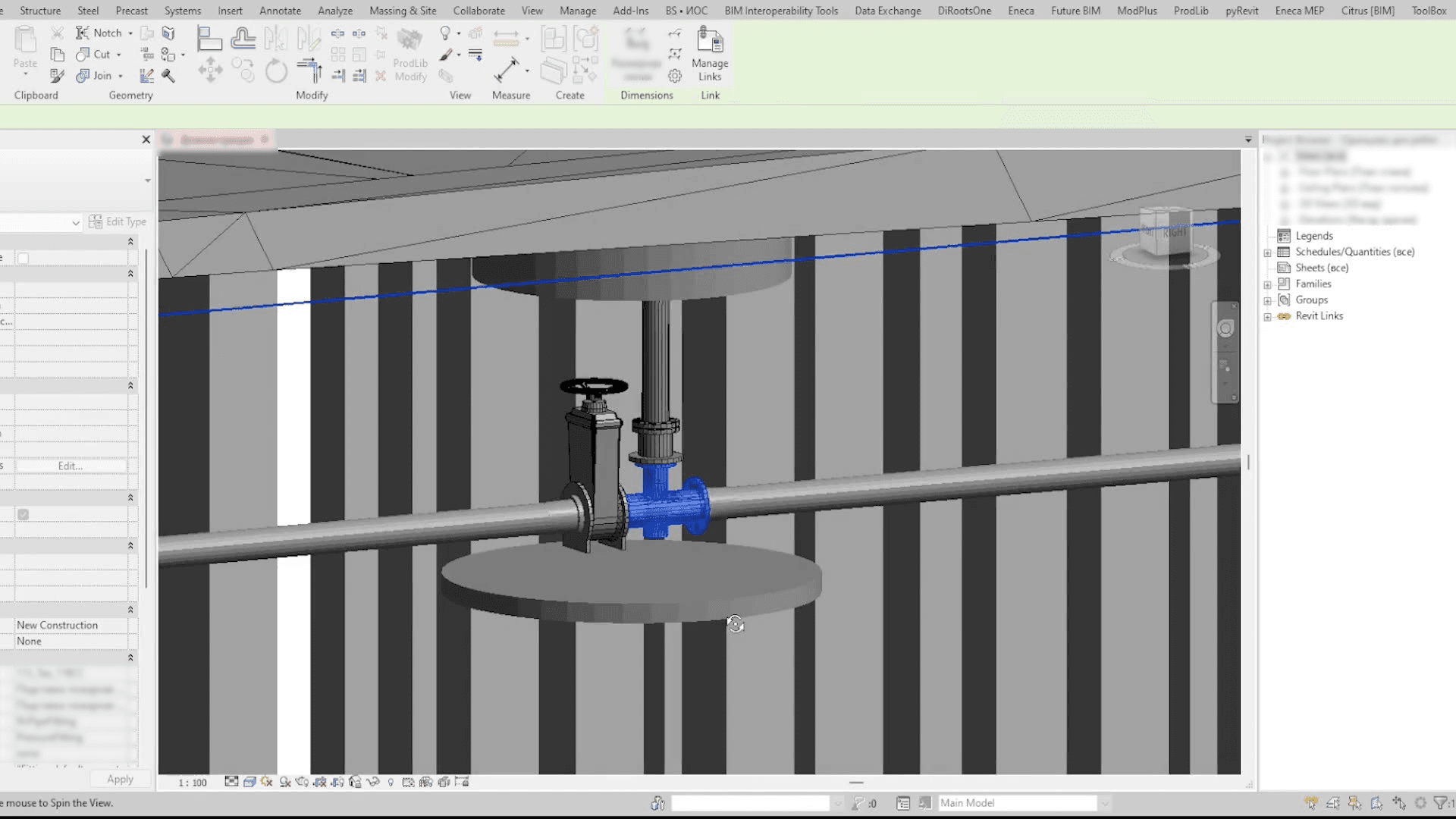
- Corridor export: The current plugin version supports direct export of Civil 3D corridors to IFC without converting them into 3D solids, preserving the full structure of complex objects (curbs, trays, pavement layers, etc.), which is especially critical for large infrastructure projects.
How the plugin works
The plugin is intuitive to use:
1. Open the Eneca tab and launch IFC Export Master.
2. Fill in the “Settings” section with project data.
3. In the “Export Groups,” choose relevant categories, groups, or individual elements for export.
4. Set the IFC version, units of measurement, export path, and output file name.
5. Click “Export” and monitor progress in the plugin window.
6. The resulting .ifc file opens correctly in Revit, Navisworks, and other BIM software.
Real project example
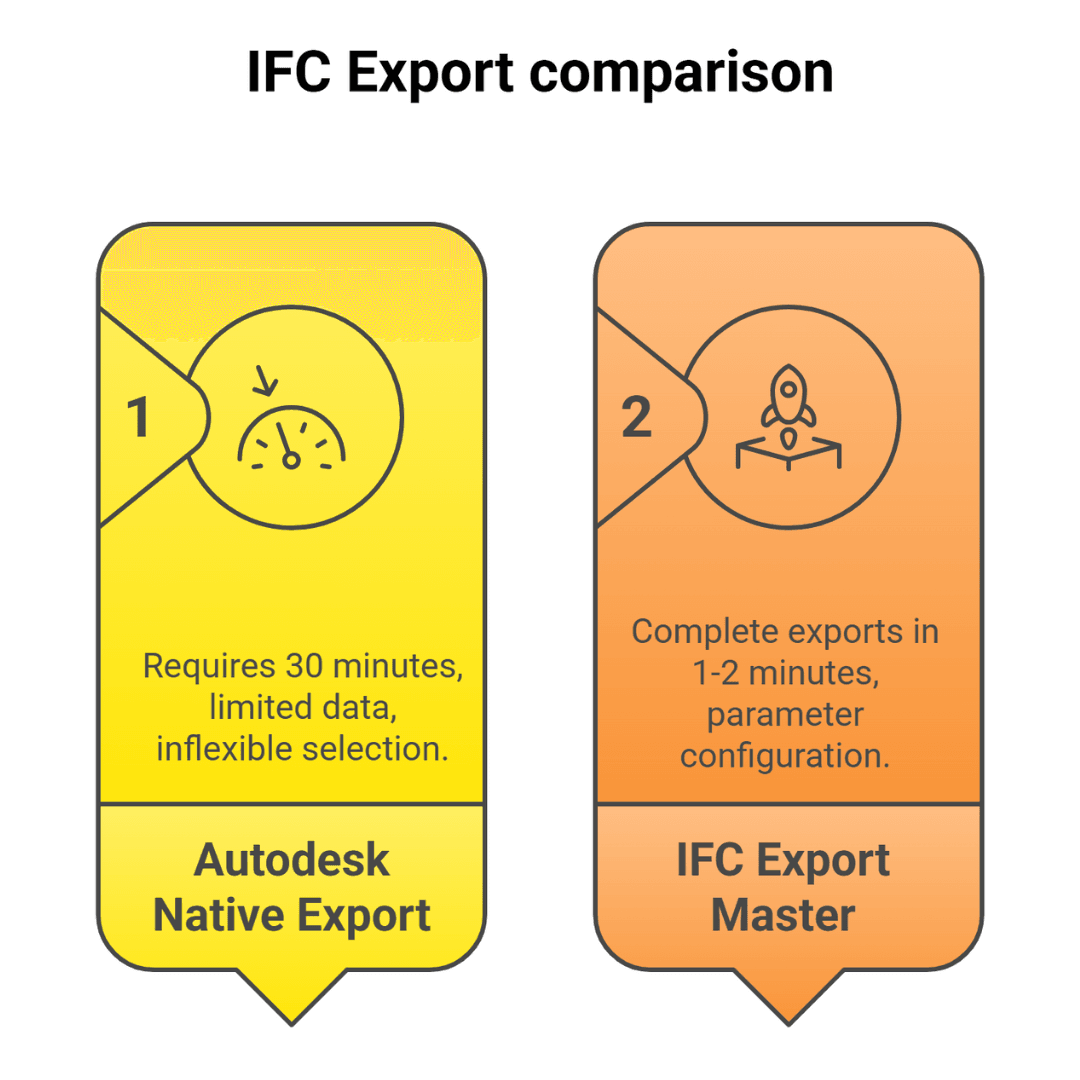
IFC Export Master is used across all ENECA projects to transfer models. Our experience demonstrates the plugin’s superior efficiency compared to default export tools.
- Autodesk’s native IFC export often requires at least 30 minutes for model preparation and export with limited data completeness. It lacks flexible selection of individual elements and does not transfer object properties adequately.
- In contrast, IFC Export Master delivers complete, high-quality exports within 1-2 minutes, including parameter configuration and data selection.
- For instance, on a recent external network development stage, exporting approximately 407 elements took only 1 minute 2 seconds using our plugin. The standard tool failed to achieve a comparable result and consumed over 20 minutes without producing comprehensive data.
Average export times vary from 5 seconds to 3 minutes, depending on geometry complexity and volume, significantly increasing designers’ productivity and reducing error risks.
User benefits
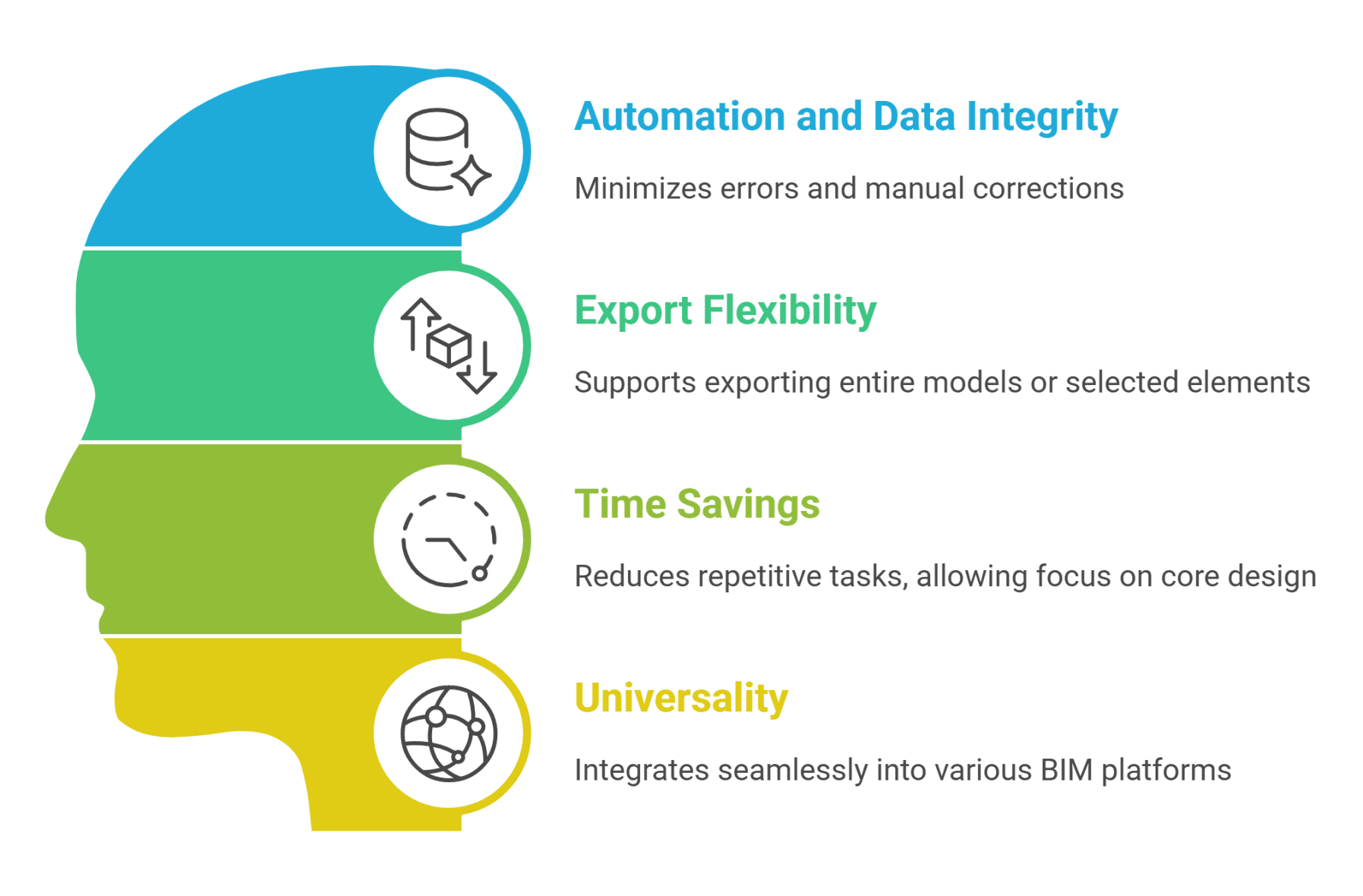
1. Automation and data integrity: Produces “clean” IFC files, minimizing errors and reducing manual corrections.
2. Export flexibility: Supports exporting entire models or selected elements, broadening application scenarios.
3. Time savings: Automation decreases repetitive tasks, freeing engineers to focus on core design challenges.
4. Universality: IFC files generated integrate seamlessly into various BIM platforms and comply with open data exchange standards.
Key results
IFC Export Master is a convenient and powerful tool for engineers working in the Civil 3D environment. It truly saves time and resources, reduces the number of errors, and facilitates cooperation among all participants in construction BIM projects.